how to use a digital planner
How to Use a Digital Planner on a Tablet: A Beginner's Guide
New to digital planning? Learn what a digital planner is, how to open it on a tablet, how the tabs and links work, and a simple daily routine.
Quick answer: To use a digital planner, open the planner PDF in a note or PDF annotation app on your tablet that supports links, tap the side tabs, index or dates to move between pages, and write on the pages with a stylus or your finger. A 5-minute check each morning and evening is enough to start.
On this page
You've just downloaded your first digital planner. You open it, tap a month tab, and the app draws a line instead of jumping. Or you scroll through page after page looking for today and wonder why anyone prefers this to paper.
These are the most common first-week frustrations, and almost all of them come from a few small things nobody explains. Once they click, a digital planner works like a paper planner that never runs out of pages, fits in your bag with everything else, and jumps to any date with one tap.
This guide walks through what you are actually buying, how to open it, how to move around, and a simple routine you can start this week.
What a digital planner actually is
Most digital planners are PDF files designed for a tablet screen. What makes them different from an ordinary PDF are the internal links:
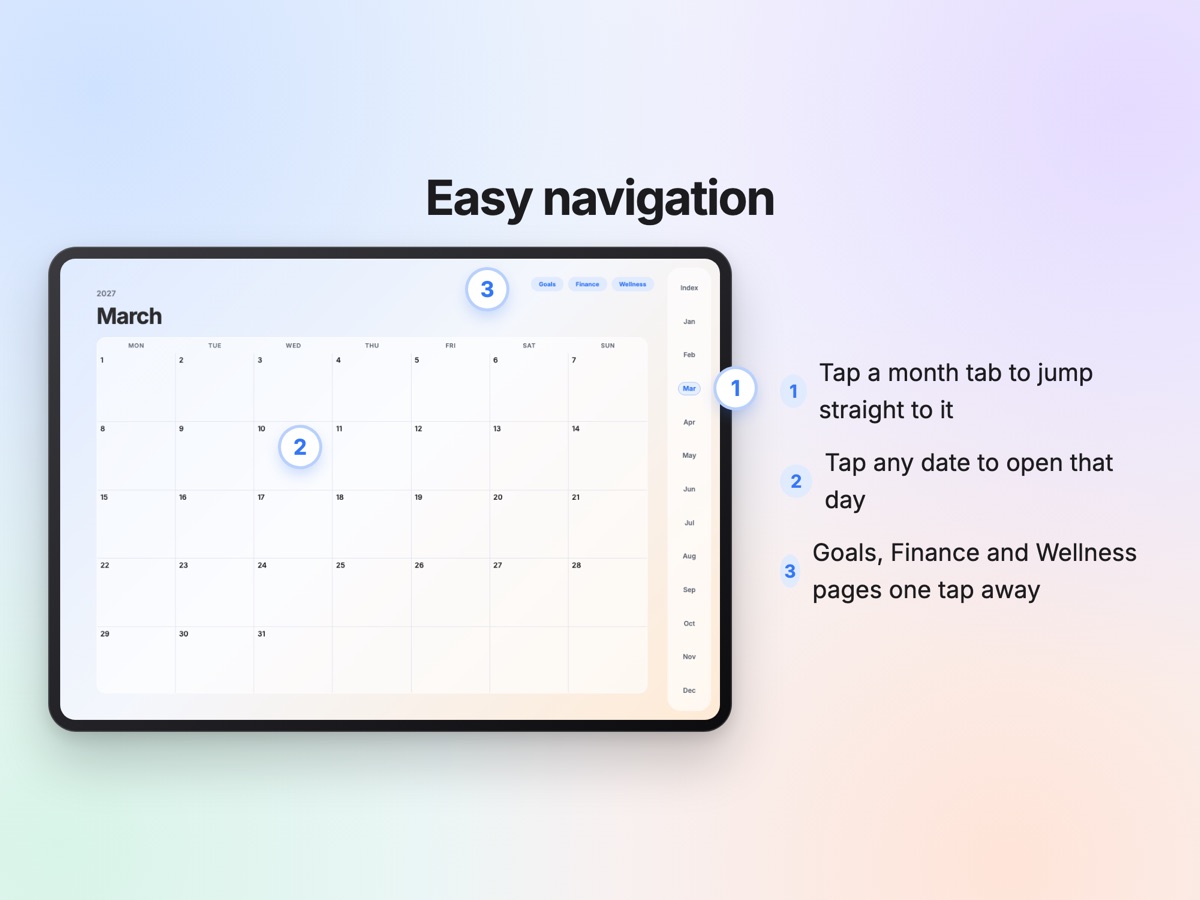
- Tabs on the side that jump to each month or section.
- An index page that lists everything inside.
- Tappable dates that open a specific day or week.
You write on the pages with a stylus or your finger, just like paper, but you can also erase cleanly, move things, duplicate pages and add digital stickers.
What you need
- A tablet. Landscape planners are usually designed for a tablet held sideways; portrait planners for a tablet held upright.
- A PDF annotation or note-taking app that lets you write on PDFs and supports links inside PDFs. Many popular apps do; check your app's help pages for "hyperlinks" if you are not sure.
- Optional: a stylus. Not required, but handwriting feels much more natural with one.
How to open your planner
- Download the file. Planners bought online usually arrive as PDF files, sometimes inside a ZIP file. If your tablet cannot open ZIP files, download them on a computer first and move the PDF over.
- Import the PDF into your app. Most apps have an "Import" or "Open" option, or you can use your tablet's "Share" or "Open in" menu from the Files app.
- Test one link. Tap a month tab. If it jumps, you're set. If it only selects the tab or starts drawing, look for a read-only or link mode in your app.
Tip: if your planner comes in several versions (for example Monday-start and Sunday-start), import only the one you'll use. Keep the others as a backup.
How to move around: tabs, index and dates
Spend five minutes just tapping before you write anything:
- Month tabs take you to that month's calendar.
- Dates on the month page open that day.
- Section links (goals, budget, notes) open those pages.
- The index is your map when you get lost.
After a day or two, you'll stop scrolling completely. That's the point of a hyperlinked planner.
A simple routine for your first week
You don't need to fill every page. Try this for seven days:
- Morning, 5 minutes: open today's page, write your top three priorities and check today's appointments.
- During the day: tick things off; jot quick notes on the same page.
- Evening, 5 minutes: move unfinished tasks to tomorrow and write one line about how the day went.
- Once a week: open the weekly page, list next week's fixed plans and pick one goal.
If that feels good after a week, add one more thing, like a habit tracker or a budget page.
Small tricks that make digital planning easier
- Duplicate pages when you need more room on a busy day.
- Use stickers sparingly for things you want to spot fast (a checkmark, a star, a heart).
- Pick one pen color for plans and another for things that actually happened.
- Turn on backups in your app or save a copy to cloud storage regularly.
How our planner helps
If you'd like a dated planner for next year, our 2027 Digital Planner is a hyperlinked landscape PDF with month tabs, tappable dates, 365 daily pages, four weekly layouts and 90 PNG stickers, plus printable US Letter and A4 pages for the monthly, weekly and planning sections. If you'd rather start any day without dates, see our guide to dated vs undated planners. Once you have your planner, this one-evening setup routine gets it ready to use.
This post was drafted with the help of AI and reviewed by the Folio team. The planners it mentions were also designed with the help of AI tools and checked page by page. App names are not used on purpose; any PDF annotation app that supports links inside PDFs will work.
Questions people ask
What is a digital planner?
A digital planner is a planner file, usually a PDF, designed for a tablet. It has built-in links (tabs, index, dates) so you can jump between pages, and you write on it with a stylus or your finger in a note or PDF app.
Do I need a stylus?
No, but it helps. You can type, tap checkboxes and use stickers with your finger. Handwriting feels most natural with a stylus.
Why don't the tabs work when I tap them?
Many apps have separate modes for writing and for following links. Switch to a read-only, view or link mode, or use your app's setting for tapping links in PDFs.
Can I use a digital planner on more than one device?
Usually yes, if your note app syncs through its own cloud or you store the file in cloud storage. Check your app's sync settings and keep a backup copy.
Is a digital planner better than paper?
Neither is better for everyone. Digital is easier to carry, search and edit; paper is distraction-free. Many planners come with printable pages so you can use both.