hyperlinked planner
Hyperlinked PDF Planners Explained: Tabs, Links and App Support
What makes a planner hyperlinked, how tabs and day links work inside a PDF, why links sometimes don't respond, and how to check app support.
Quick answer: A hyperlinked planner is a PDF with built-in internal links, so tapping a tab, an index entry or a date jumps to that page instead of scrolling. The links only work in apps that support links inside PDFs, and in many note apps you need a read or link mode for a tap to follow the link instead of drawing.
On this page
You tap the March tab on your new planner and nothing happens. Or worse, your pen leaves a dot right on the tab. You try a different app and it works, but now you're not sure which one to trust.
"Hyperlinked" is one of the most common words in digital planner listings, and one of the least explained. Here's what it actually means, why taps sometimes don't work, and how to check your app in two minutes before you start writing.
What "hyperlinked" means in a planner
A hyperlinked planner is a PDF file with internal links built in. Instead of scrolling through hundreds of pages, you tap a spot on the page and jump straight to another page in the same file. It works like links on a website, except every destination is inside the planner.
These links are a standard part of the PDF format. PDF has been an open international standard (ISO 32000) since 2008, and it supports interactive elements such as links, bookmarks and annotations alongside text and images, as summarized in the PDF overview on Wikipedia. That's why a hyperlinked planner isn't tied to one app: any app that supports links inside PDFs can follow them.
The three kinds of links you'll find
Most hyperlinked planners combine three types of links:
- Tabs. A strip on the side of every page with months or sections (Index, Jan, Feb... or Days, Weeks, Tools). Tap one and you land on that section.
- Index links. An index or table of contents where each line opens a section, such as goals, budget pages or notes.
- Date and day links. Dates on a month calendar, or day names on a weekly page, that open that day's page. Good planners link back the other way too, so a day page returns to its week or month.
Together these let you move from the year to a month, a week and a single day in two or three taps.
Why a tab sometimes doesn't respond
The most common problem isn't the planner at all. It's the app mode:
- Writing or editing mode: a tap draws a dot or selects the pen, so the link is ignored.
- Read, view or link mode: a tap follows the link.
Many note-taking apps have a toggle for this, or a setting for tapping links in PDFs. If a planner's links work in one app but not another, the app probably handles PDF links differently. A few apps don't support PDF links at all.
Another cause: if a planner was flattened, exported as images or "printed" to a new PDF, the links can be lost. Always import the original file.
How to check app support in two minutes
Right after importing a hyperlinked planner, before writing anything:
- Tap a month or section tab. Does it jump?
- Open the index and tap two entries. Do they land on the right pages?
- Tap a date on a month page. Does it open that day?
- Tap the link back from the day page to its week or month.
If all four work, you're set. If none work, check the app's link or read mode. If only some work, contact the seller with the page number. That's useful feedback, and most sellers will fix a broken link.
Hyperlinks vs. printing
Links only exist on screen. When you print a hyperlinked planner, the tabs become a visual guide and the index becomes a list with page numbers. Printable planners usually come as separate files sized for US Letter or A4. Here's how to print planner pages at home without cut-off edges.
How our planner helps
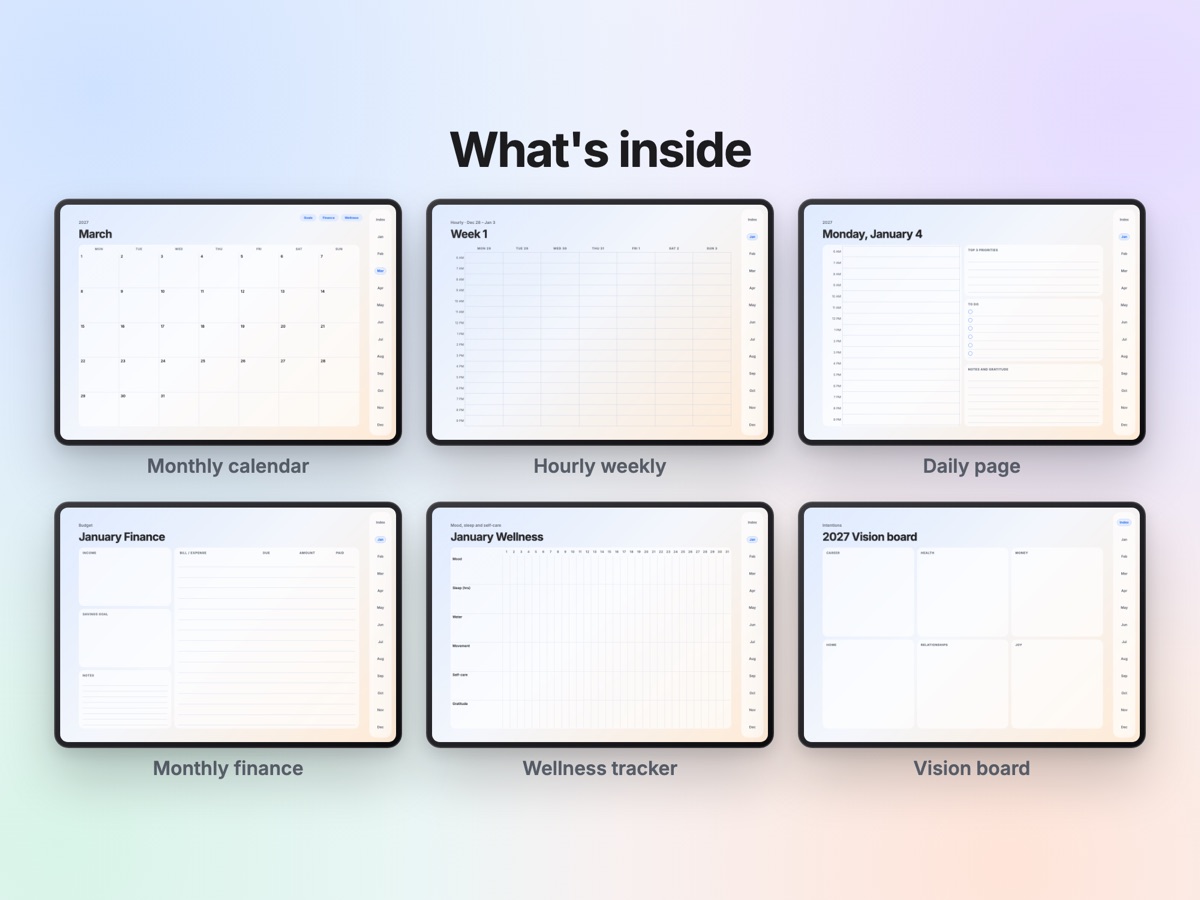
Our 2027 Digital Planner is a dated, hyperlinked landscape PDF with 689 pages. Month tabs, an index and section links sit on every page; tapping a day number on a month page, or a day name on a weekly page, opens that day. It includes 365 daily pages, four weekly layouts, monthly goals, finance and wellness pages, a 25-page template library and 90 PNG stickers, in Monday-start and Sunday-start versions. Printable US Letter and A4 files cover the monthly, weekly and planning pages; the daily pages are digital only. It's an instant digital download, and nothing is shipped.
New to digital planning? Start with the beginner's guide, then set up your planner in one evening.
This post was drafted with the help of AI and reviewed by the Folio team. The planner it mentions was also designed with the help of AI tools and checked page by page. App names are not used on purpose; app menus and modes vary.
Questions people ask
What does hyperlinked mean in a digital planner?
It means the planner PDF contains internal links. Tapping a month tab, an index entry or a date takes you straight to that page, like links on a website.
Why do my planner tabs not work?
Usually the app is in a writing or editing mode, so a tap draws instead of following the link. Switch to a read, view or link mode, or enable the setting for tapping links in PDFs. A few apps do not support PDF links at all.
Do hyperlinks still work if I print the planner?
No. Printed pages have no links. Tabs printed on the side can still work as a visual guide, and an index page with page numbers helps you find sections on paper.
Will links break if I add pages?
Internal links point to specific pages in the file. Many apps keep them working when you add or duplicate pages, but behavior differs by app, so tap a few links after reorganizing pages.
Is a bigger hyperlinked planner slower?
Large files with hundreds of pages can take longer to import and open, especially on older tablets. Once open, jumping by links is usually faster than scrolling.